

 Fa

Contents16 chapters
Quick start in 6 steps
In a hurry? These six steps are all you need: Create an account and log in, Identity verification, Enter a battle, Join the raffle, Connect to MT5 and Command center. Each step has its own full chapter below. Wherever a button or menu name appears inside “...”, it is exactly what you see on screen.
Creating an account and logging in
Your Combat Cup account is separate from your account on the main Combat site. If you don't have one here, register.
Registering (creating an account)
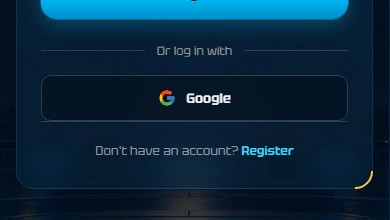
You can create an account in two ways:
- 1Register with “Google”.
- 2Register by filling in the form: “Register”
Method 1Registering and logging in with Google
On the login page, select the “Google” button and log in; you don't need a separate password.
Method 2Registering with the form
On the login page, select “Register” to open the account form.
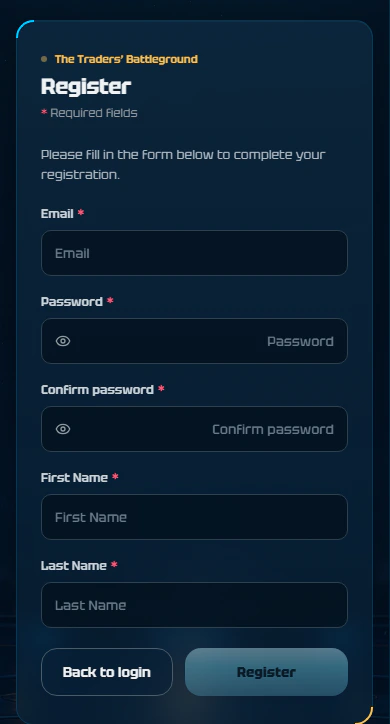
- 1Enter an email address you have access to.
- 2Enter your first name.
- 3Enter your last name.
- 4Select “Register”.
Logging in
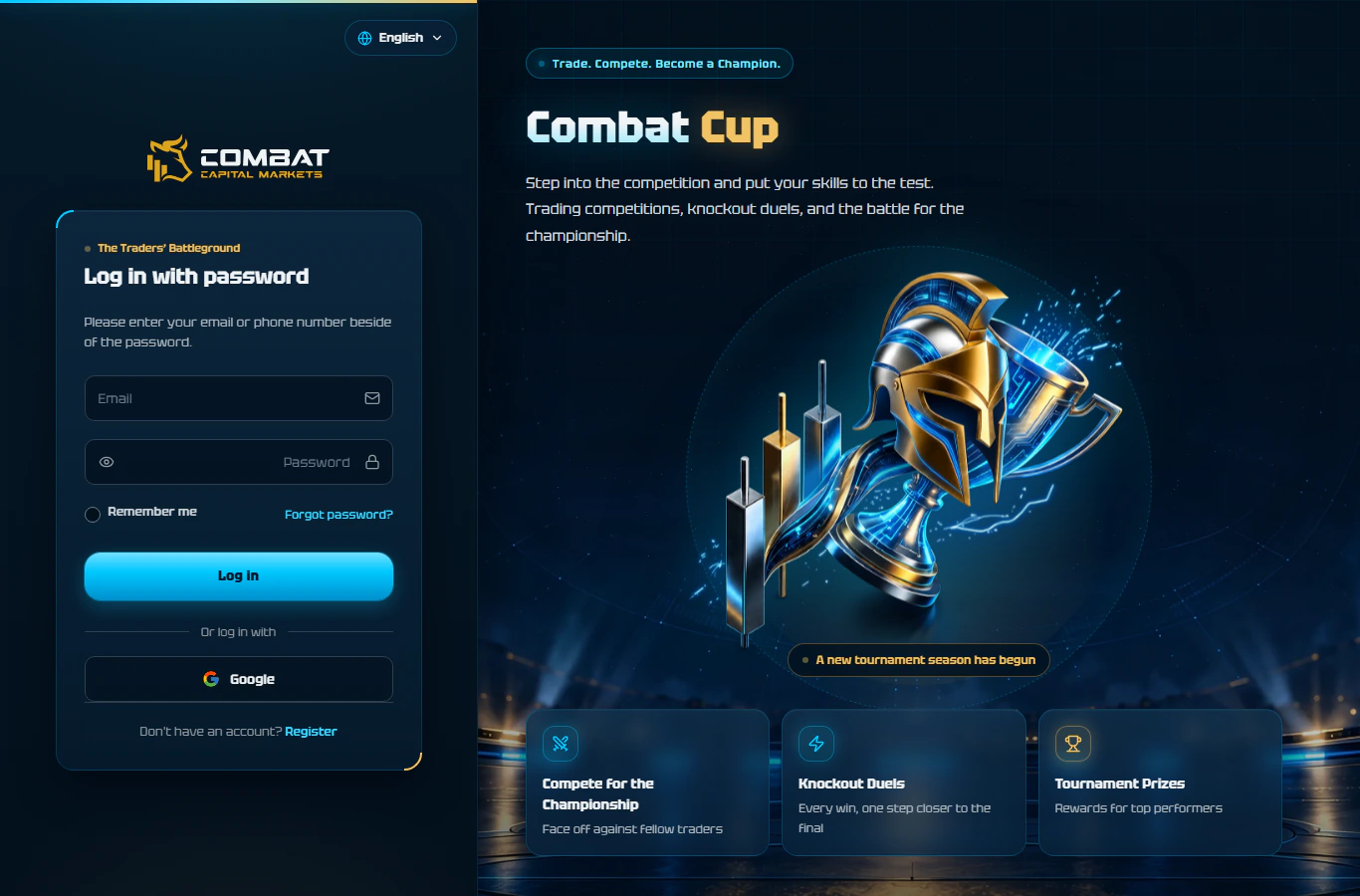
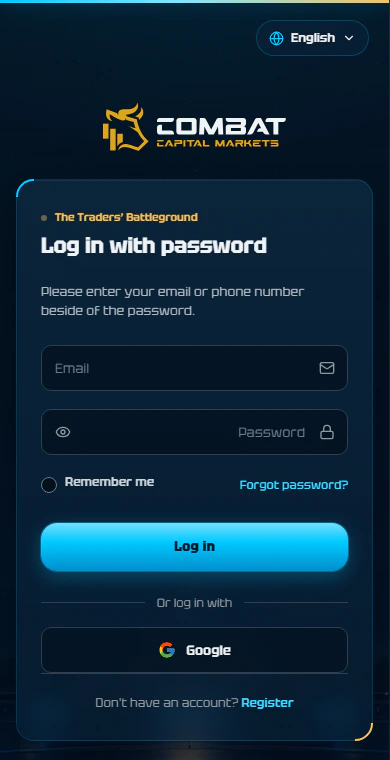
- 1Enter your account's email.
- 2Enter your password. The eye icon lets you see what you typed.
- 3Select the “Log in” button.
If you registered with Google, select the “Google” button on this same page.
The first page and the menu
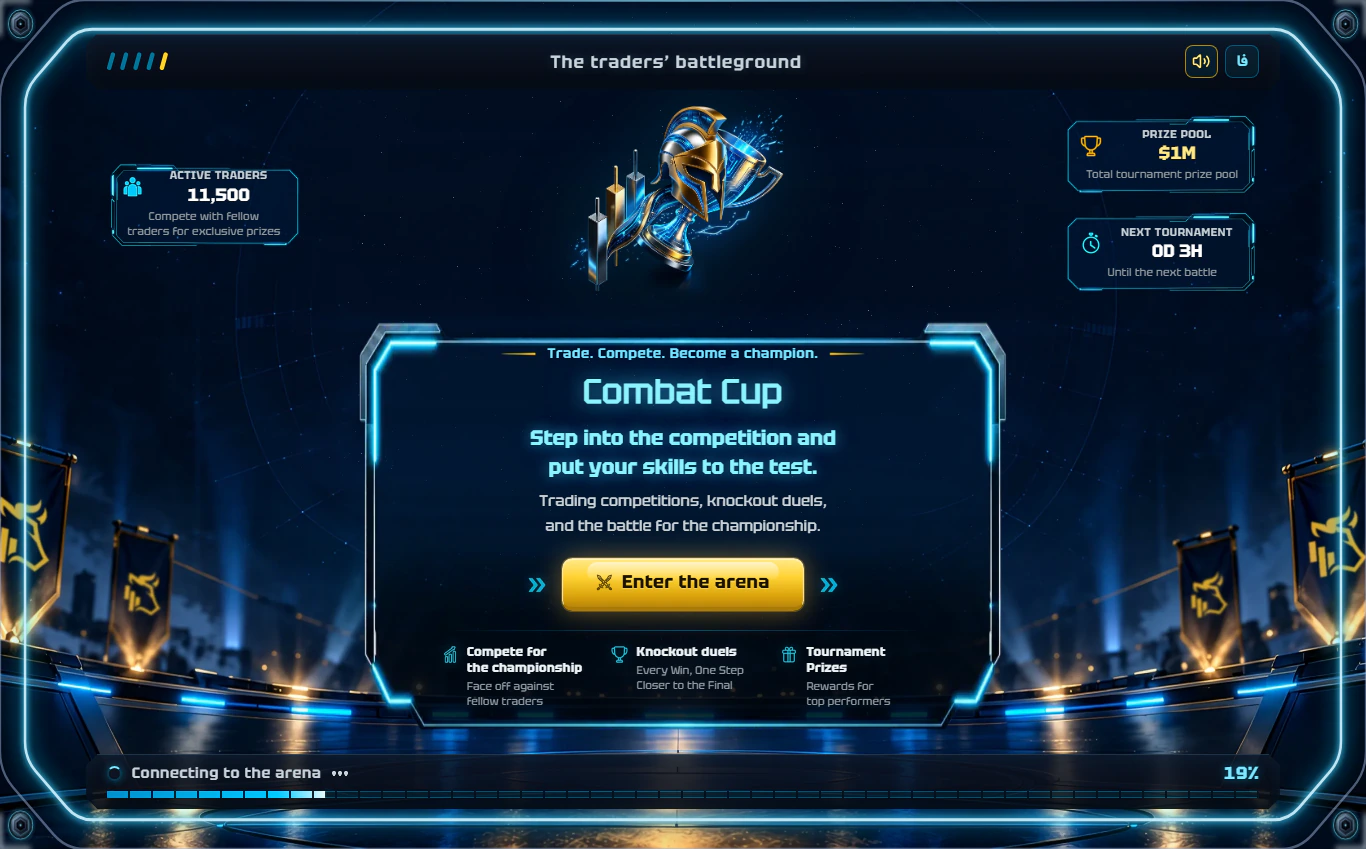
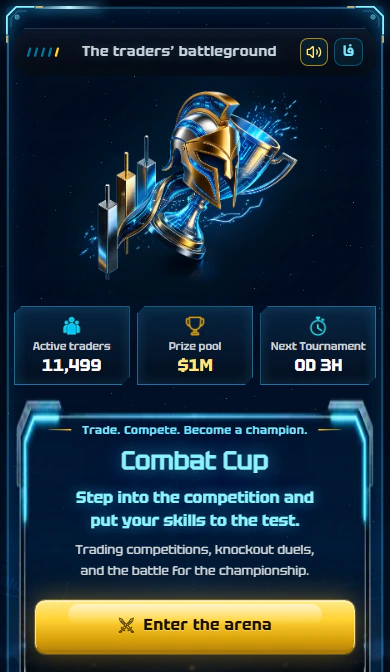
After you log in, you see Combat Cup's first page.
- 1Live arena stats: battles in progress, the prize pool and active traders.
- 2Select “Enter the arena” to go into the panel (the Arena). If you do nothing, you are taken there automatically after a few seconds.
Your first visit: the welcome and the recruit boot camp
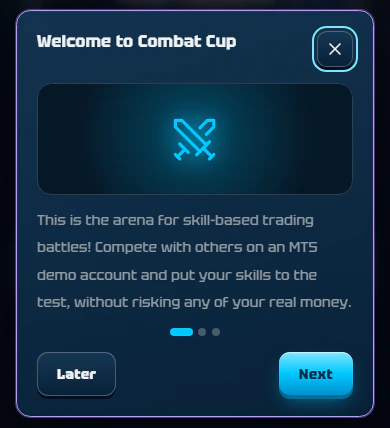
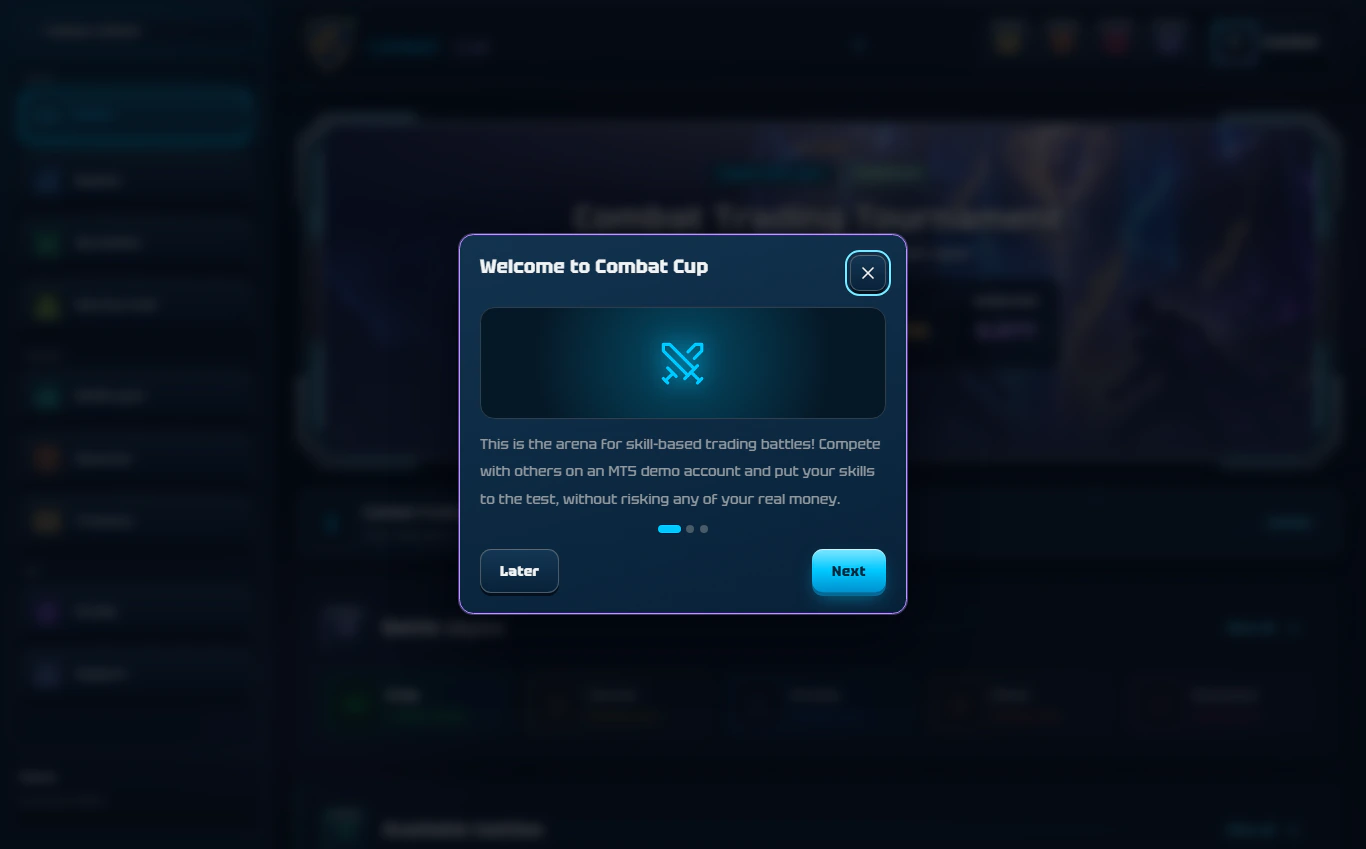
- The “Welcome to Combat Cup” windowThree slides show what Combat Cup is, how you win and which prizes are waiting for you. Move on with “Next” or close it with “Later”.
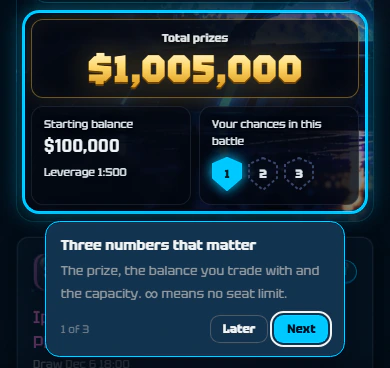
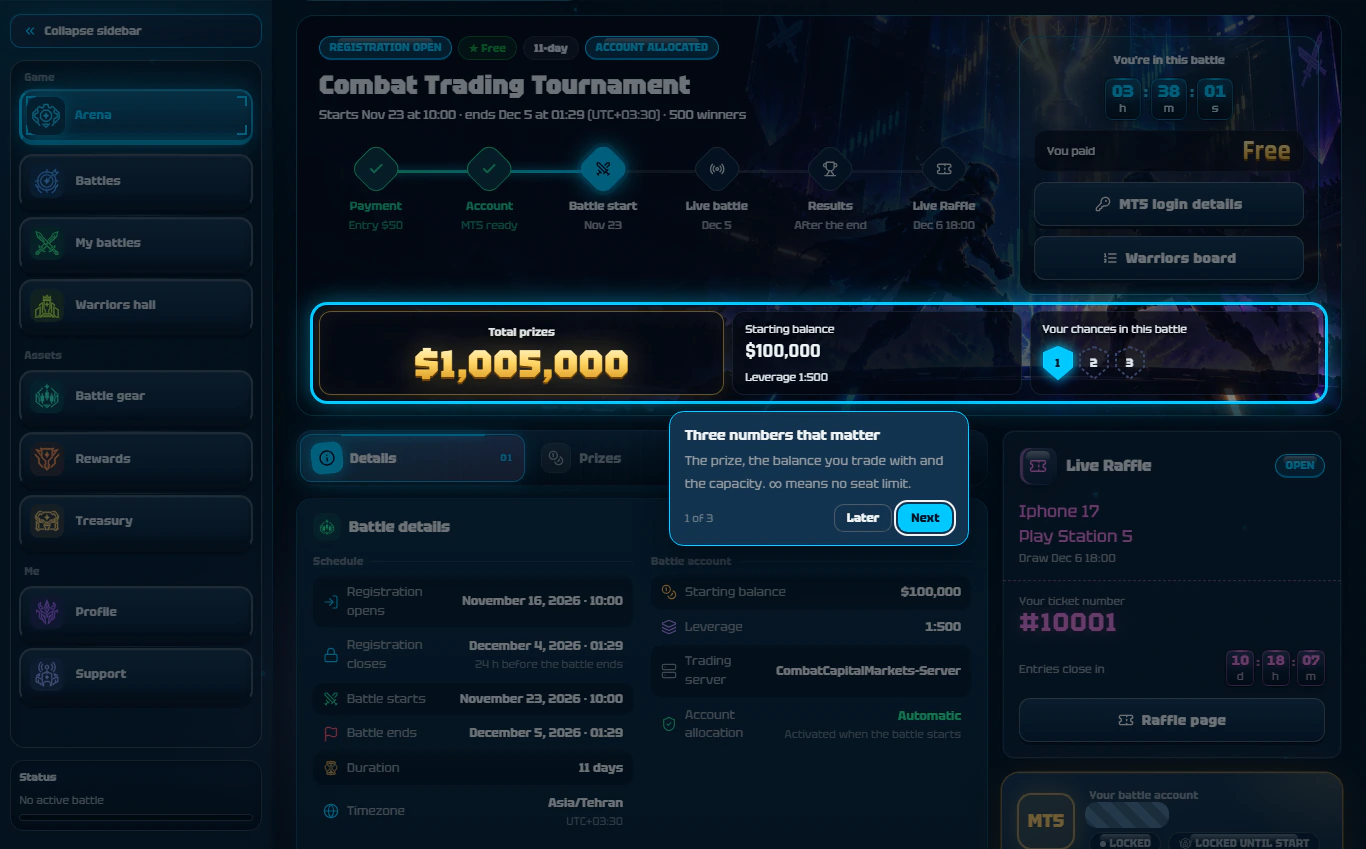
- “Start boot camp”: a short tour of the battle page
- Three key numbers: the prize, the balance you get for the battle and the capacity (∞ means there is no cap).
- Rules: 🔴 means elimination from the battle, 🟡 means a temporary removal.
- Registration: you can register until the countdown ends; the number of re-entries is at the bottom of the page.
- Seeing the tour againIn your account menu, select “Getting-started guide”.
The menu on a computer
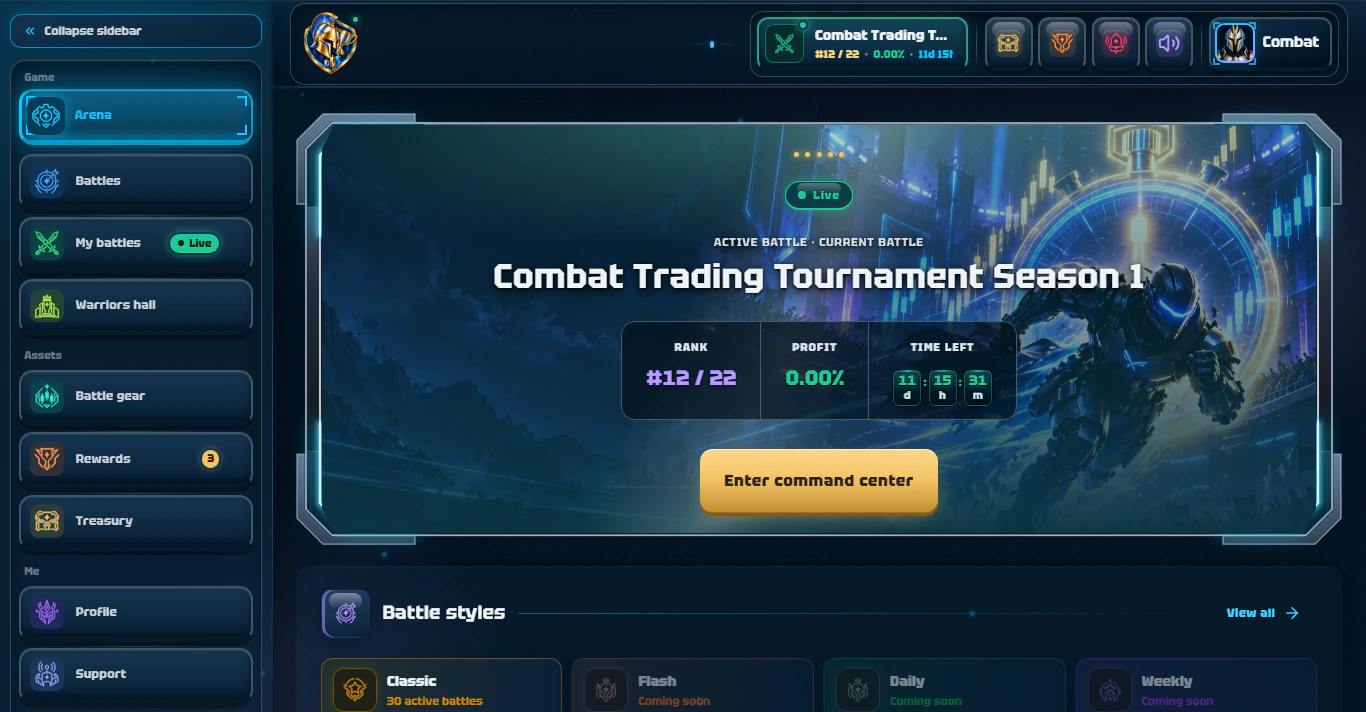
The parts of the menu and the toolbar15 items
- 1“Arena”: the main page; your active battle and suggested battles.
- 2“Battles”: the list of all battles.
- 3“My battles”: the battles you have registered for. While one is in progress it carries a “Live” tag.
- 4“Warriors hall”: each battle's ranking board.
- 5“Battle gear”: your MT5 accounts and their login details.
- 6“Rewards”: prizes, certificates and coupons.
- 7“Treasury”: your Combat wallet balance and transactions.
- 8“Profile”: your details, identity verification and battle record.
- 9“Support”: frequent questions, tickets and ways to reach us.
- 10Live battle bar: your active battle's name, the time left, your profit and your rank. Clicking it takes you to the command center.
- 11Treasury: shortcuts to top up, withdraw and see your payment history.
- 12Rewards: prizes that are on their way.
- 13Notifications
- 14Sound: game sounds and lobby music.
- 15Your account: profile, support, the getting-started guide, language and log out.
The menu on a phone


The parts of the top bar and the bottom menu10 items
- 1Treasury
- 2Rewards
- 3Notifications
- 4Sound
- 5Your account and the language switch
- 6“Arena”
- 7“Battles”
- 8“My battles”; the middle button
- 9“Battle gear”
- 10“More”: the rest, such as Warriors hall, Rewards, Treasury, Profile and Support.
Identity verification
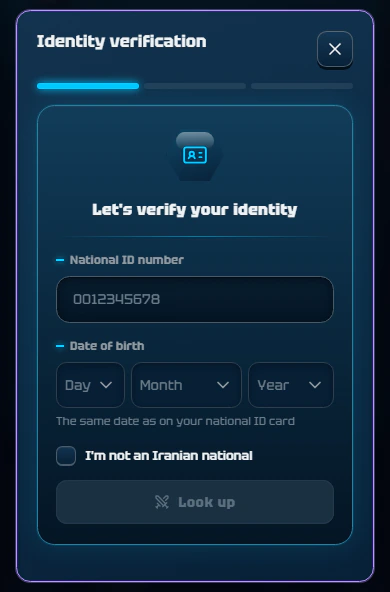
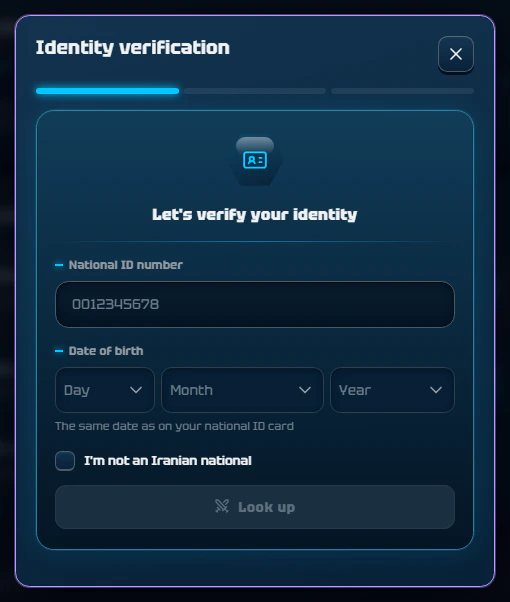
To complete it, tap “More” in the bottom menu, go to “Profile” and tap “Identity verification”.
To complete it, go to “Profile” in the side menu and click “Identity verification”.
- 1Enter your national ID number.
- 2Choose your date of birth (day, month and year in the Persian calendar) exactly as on your national ID card.
- 3If you are a foreign national, tick “I'm not an Iranian national”.
- 4Select “Look up”.
After the lookup: confirming your name, mobile number and SMS code
- “Is this you?” Your name and your father's name are shown. If they are right, select “Yes, that's me”. After you confirm, these details are locked.
- Mobile number: enter a number registered in your own name (under the same national ID) and select “Continue”.
- 6-digit code: enter the code sent by SMS and select “Verify”. If the code doesn't arrive, select “Resend code” when the countdown ends.
- The message “Identity verified” means you are done. If you came from a battle's registration page, you are taken back there automatically.
If you hit an error: the messages and what to do
| Message | What to do |
|---|---|
| Doesn't match the civil registry | Check your national ID number and date of birth again (go back and correct your details). |
| This number isn't registered to you | Enter a number that is registered in your own name. |
| No account found on Prop Combat | Select “Continue verification on Prop Combat” and complete your verification there. |
| Lookup service unavailable | Try again a little later. |
The Arena
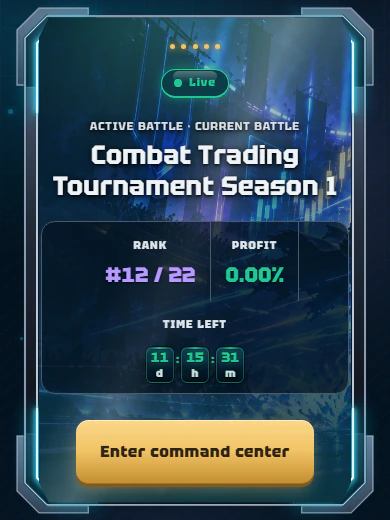
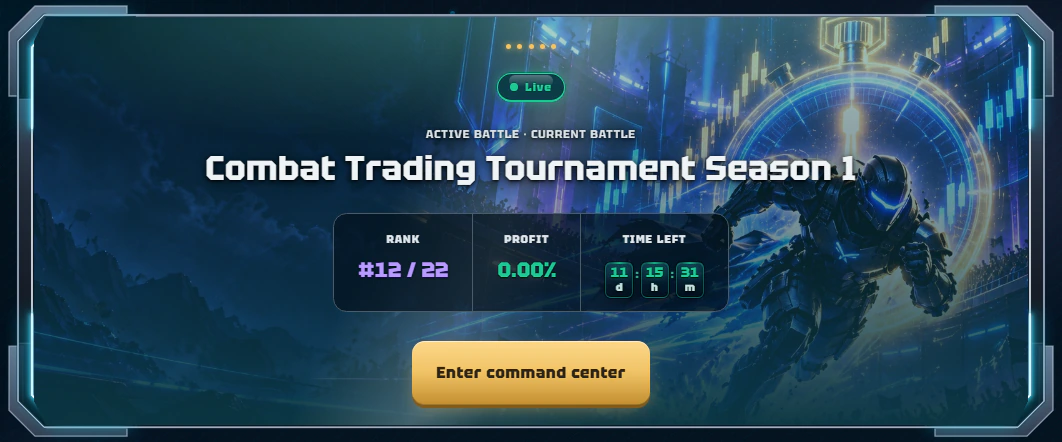
The Arena is the panel's main page and always shows your active battle's status at the top.
- 1The battle's status (for example “Live”) and its name.
- 2Your rank among all warriors and your profit percentage.
- 3The time left until the battle ends.
- 4“Enter command center”: your battle's live page (chapter 11).
- 5Your next battle and when it starts. “Details” opens its page.
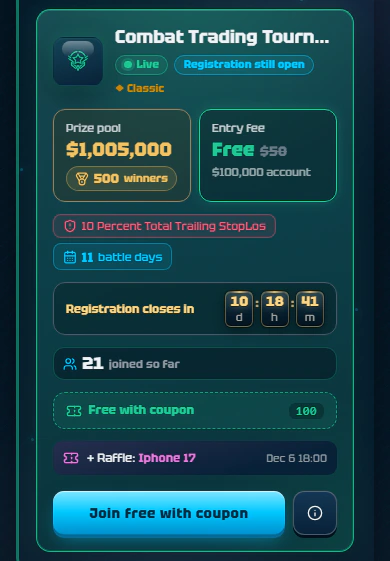
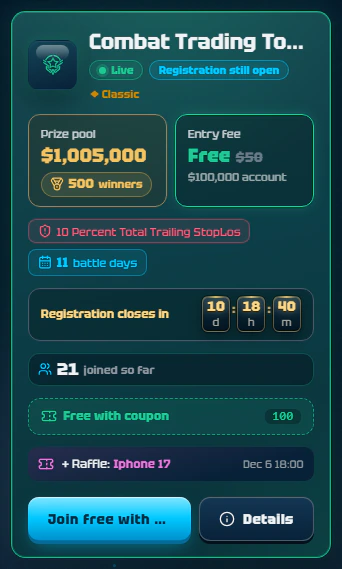
The lower part of the Arena shows the battle styles and the available battles. Each battle has a card:
- 1The prize pool and the number of winners
- 2The entry fee and the battle account's balance
- 3The main elimination rule, for example “10% trailing total loss limit”
- 4The battle's duration
- 5The countdown to the start or the end
- 6The number of warriors who have registered
- 7If the battle has a raffle, its prize and time
- 8The main button: “Enter battle”, or “My battle” if you have registered
- 9Battle details
Battles
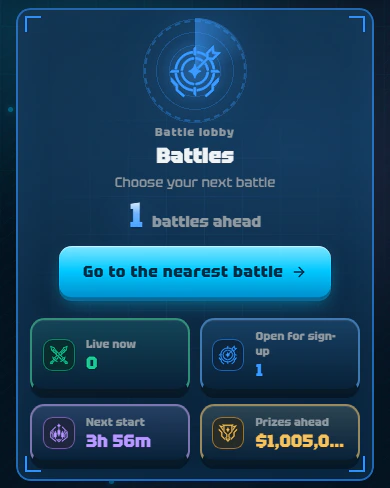
Tap “Battles” in the bottom menu.
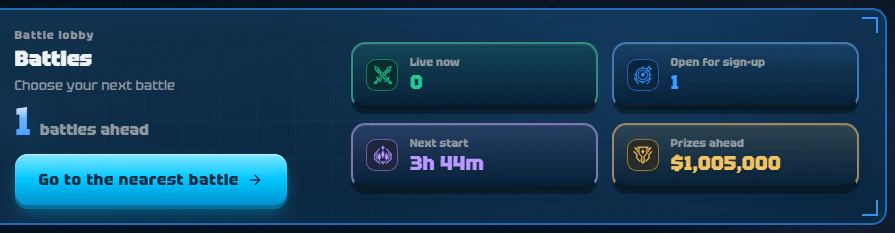
Click “Battles” in the side menu.
- 1“Go to the nearest battle”: takes you straight to the battle that starts soonest.
- 2Battles in progress
- 3Battles open for registration
- 4When the next battle starts
- 5The total prizes of the upcoming battles
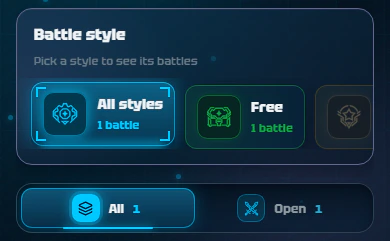
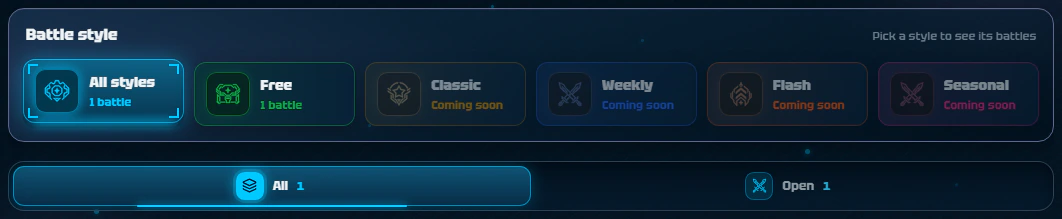
- 1“Battle style”: choose a style to see only its battles.
- 2Status filter: the “All”, “Open” and “Running” tabs are in this section. Once a tournament has ended, the “Finished” battles are shown in the “Archive” section below it.
The battle page
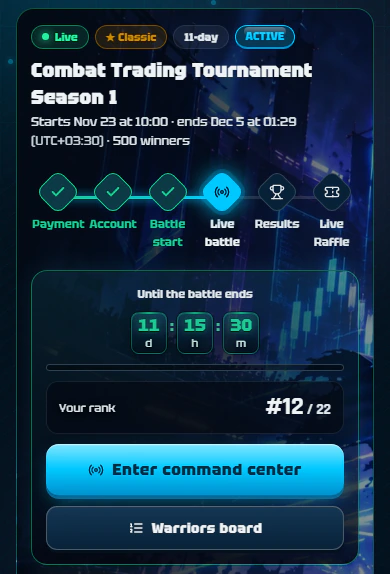
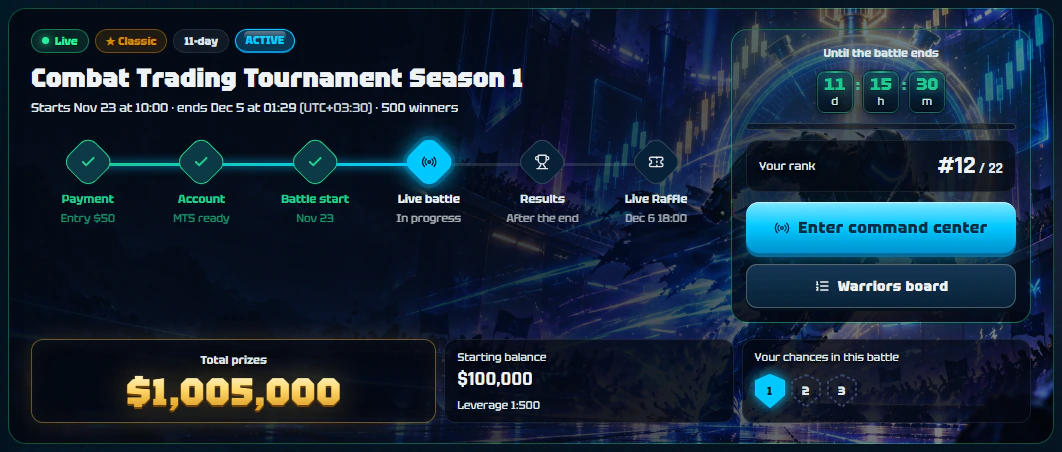
Everything about a battle is on its own page: schedule, prizes, rules, raffle and your MT5 account.
- 1The battle route: Payment → Account → Battle start → Live battle → Results → Live Raffle. The stage you are at is lit.
- 2Your rank (if you are in the battle)
- 3“Enter command center”
- 4“Warriors board”: the full ranking of this battle
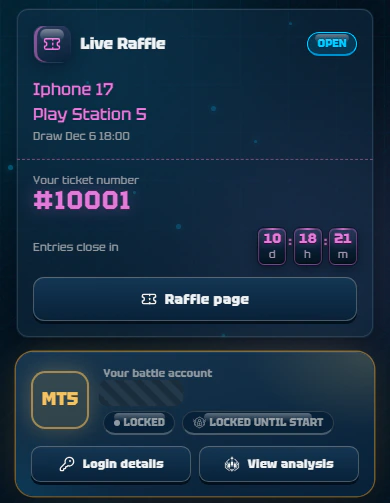
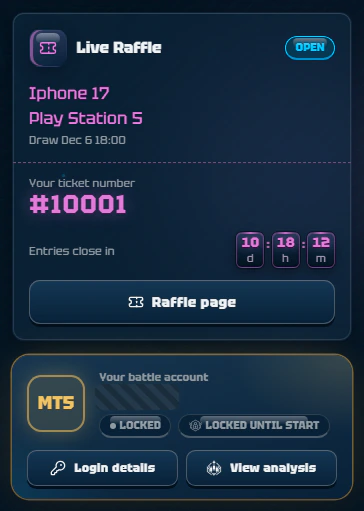
- 1The Live Raffle card: the prizes and the draw date
- 2Your raffle ticket number and the time left to join the raffle
- 3“Raffle page” (chapter 9)
- 4Your battle's MT5 account number
- 5“Login details”: the MT5 server, account number and password
- 6“View analysis”: your account's trading stats
The three tabs at the bottom of the page
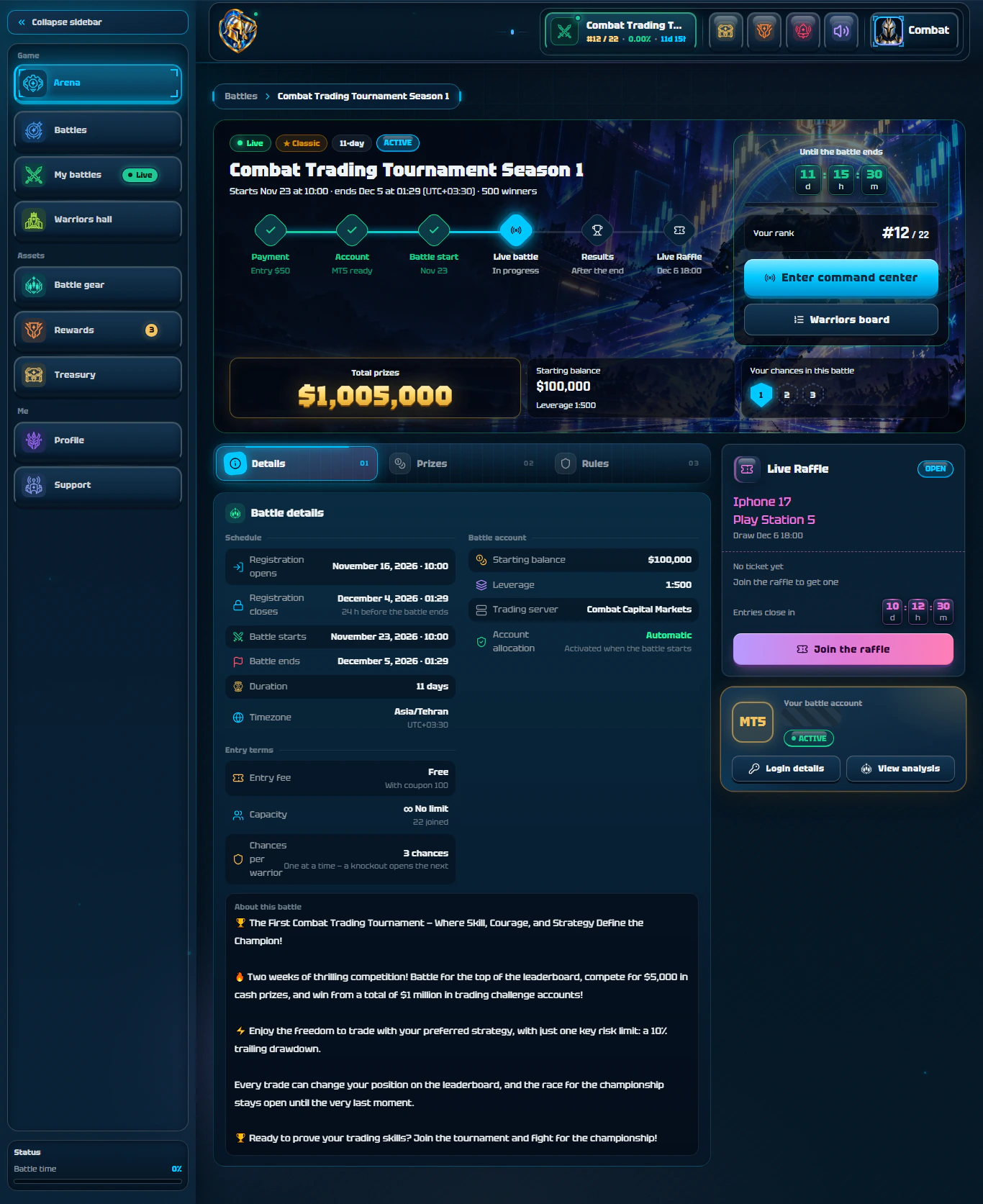
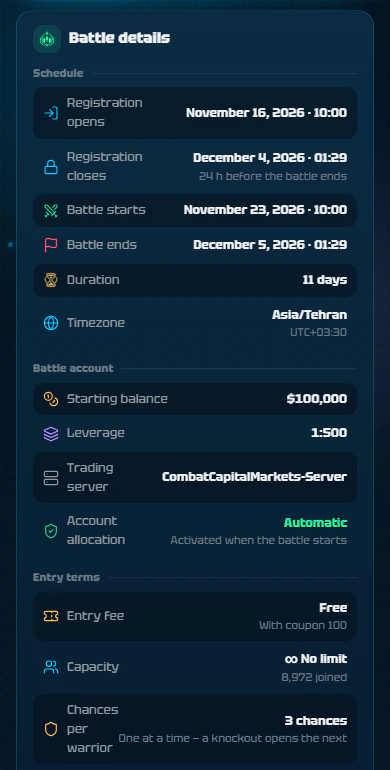
The “Details” tab: schedule, account specs and entry conditions
“Details”: the full schedule (registration opening and closing, battle start and end, duration and timezone), the battle account's specs (starting balance, leverage, platform, trading server) and the entry conditions (fee, capacity and number of entries).
The “Prizes” tab: the prize for each rank
“Prizes”: the prize for each rank. In Combat Cup:
| Rank | Prize |
|---|---|
| 1 to 5 | Cash: $2,000 · $1,200 · $800 · $600 · $400 |
| 6 to 10 | A $50,000 challenge account |
| 11 to 30 | A $25,000 challenge account |
| 31 to 40 | A $10,000 challenge account |
| 41 to 50 | A $5,000 challenge account |
| 51 to 150 | A 50% discount code |
| 151 to 300 | A 40% discount code |
| 301 to 500 | A 30% discount code |
After the results are reviewed, prizes are paid into the winners' wallets and accounts.
The “Rules” tab: the elimination rules and the full terms
“Rules”: the elimination rules and where you stand on each. The “Full rules and terms” link is here too.
Registering for a battle
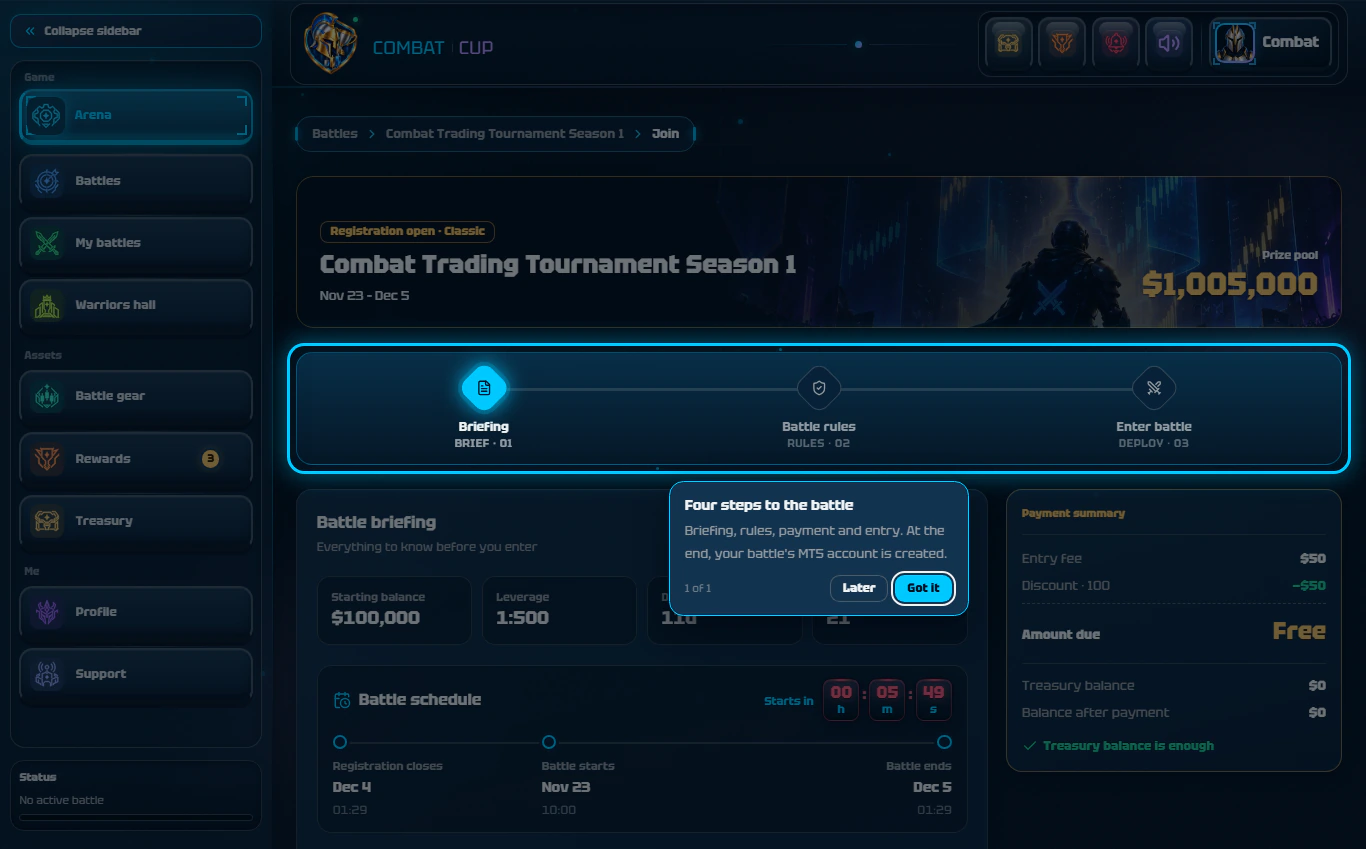
On the battle page or on a battle's card, select “Enter battle”. If you haven't verified your identity yet, you first see the message “Identity verification required” (chapter 4). After verification you are taken back to this page automatically.
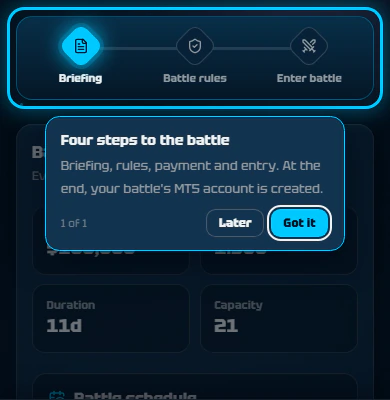
Step 1: Briefing
- 1The steps bar: Briefing → Battle rules → Enter battle. The step you are on is lit.
- 2The first time, a small guide explains the route; close it with “Got it”.
Check the starting balance, leverage, duration, capacity, schedule and prizes. “Payment summary” shows the fee, the coupon discount and the amount to pay. Then select “Continue to rules”.
Step 2: Battle rules
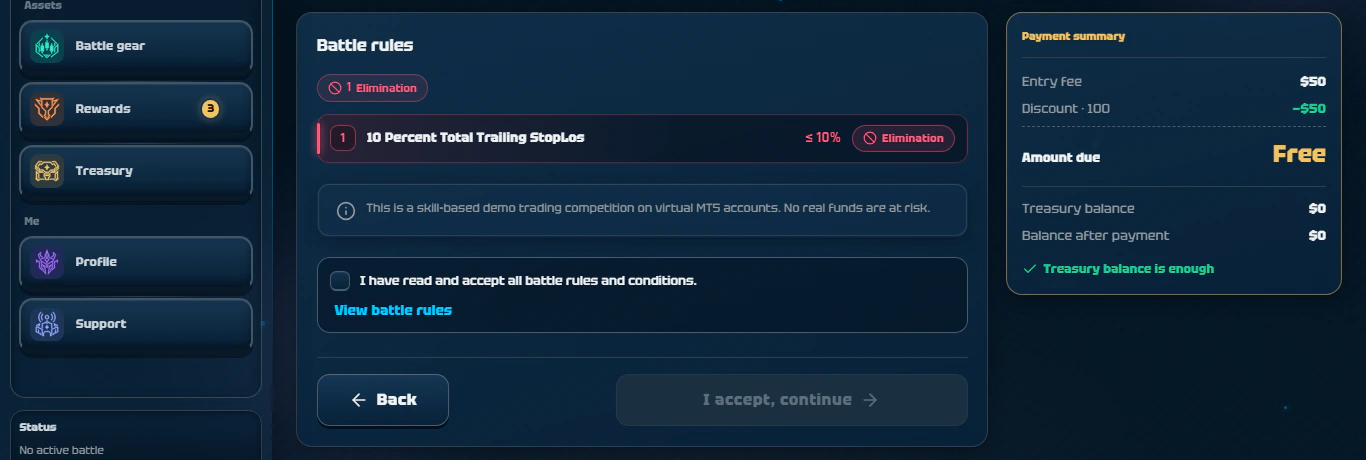
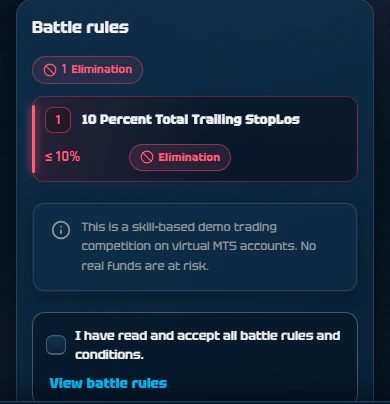
- 1The battle's rules and what each one leads to; for example “10% trailing total loss limit” means elimination from the battle.
- 2Read the rules (“View battle rules”) and tick “I have read and accept all battle rules and conditions.”
- 3Select “I accept, continue”. The button stays disabled until you tick the box.
- 4Payment summary: if you have a coupon, its discount is taken off here.
Step 3: Enter battle
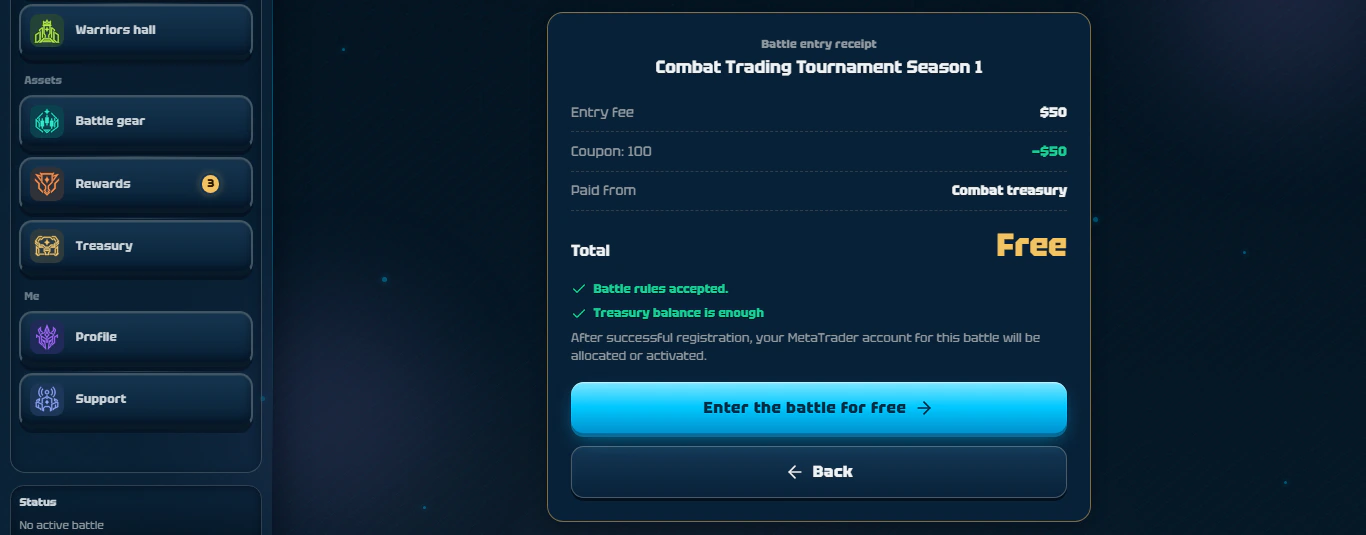
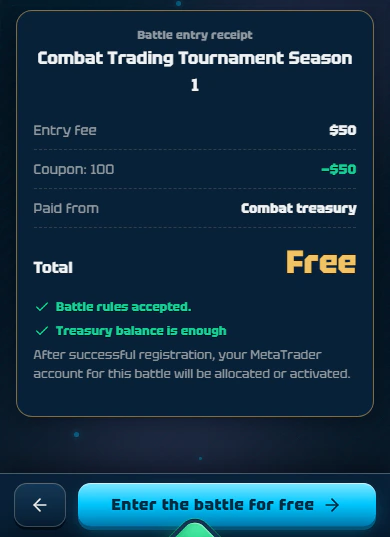
- 1The receipt: the entry fee, the coupon and its discount, and that the fee is taken from “Combat treasury”.
- 2The total; if a coupon covers the whole fee, it reads “Free”.
- 3Select “Enter the battle for free” or “Pay … & enter battle”.
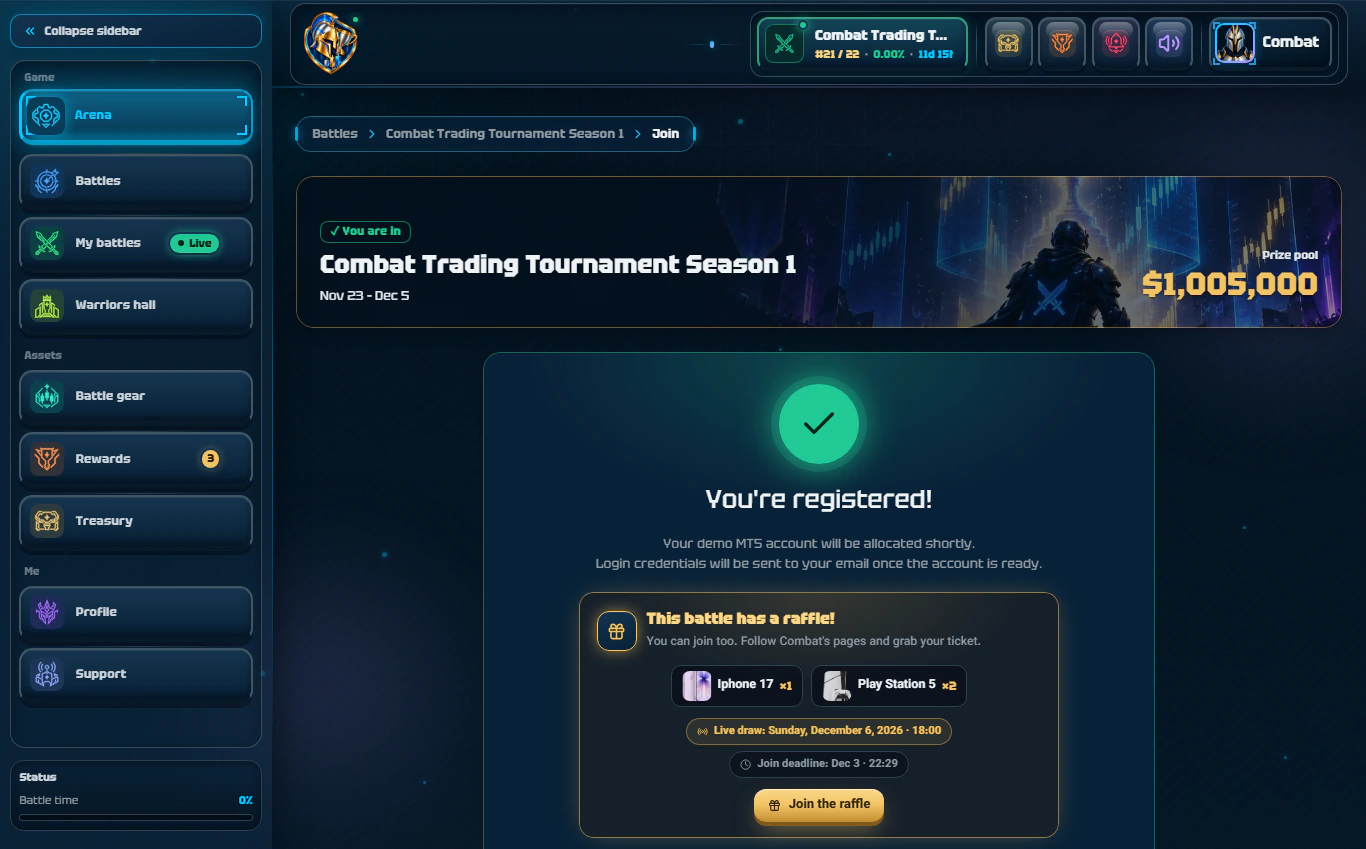
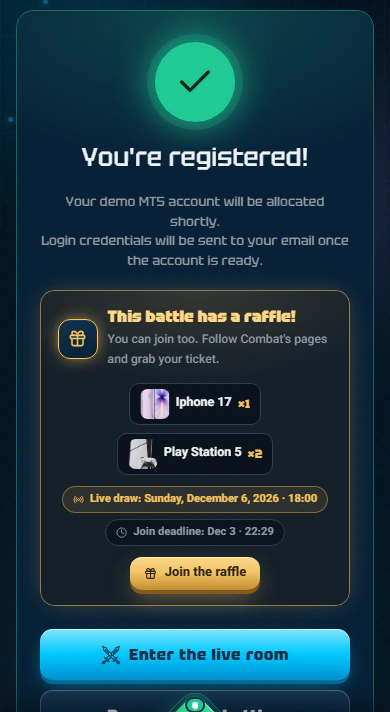
You're registered!
- 1Your MT5 demo account will be created shortly. Its login details will be in “Battle gear” (chapter 10).
- 2If the battle has a raffle, you see the invitation right here; “Join the raffle” takes you to the next chapter.
The “Enter the live room” and “Browse more battles” buttons are at the bottom of the same card.
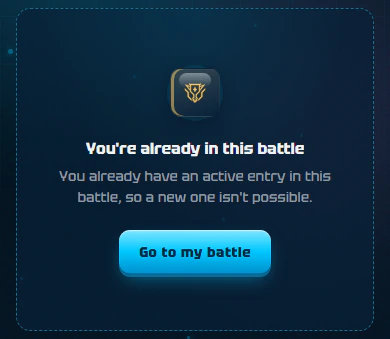
If you have registered for a battle and select “Enter battle” again, you see the message “You're already in this battle”. Go to your battle's page with “Go to my battle”.
The raffle
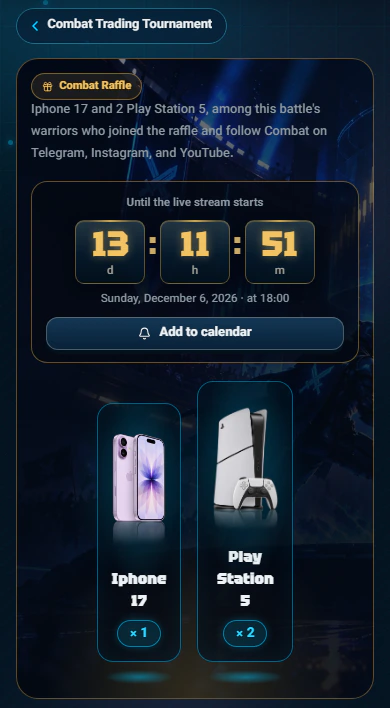
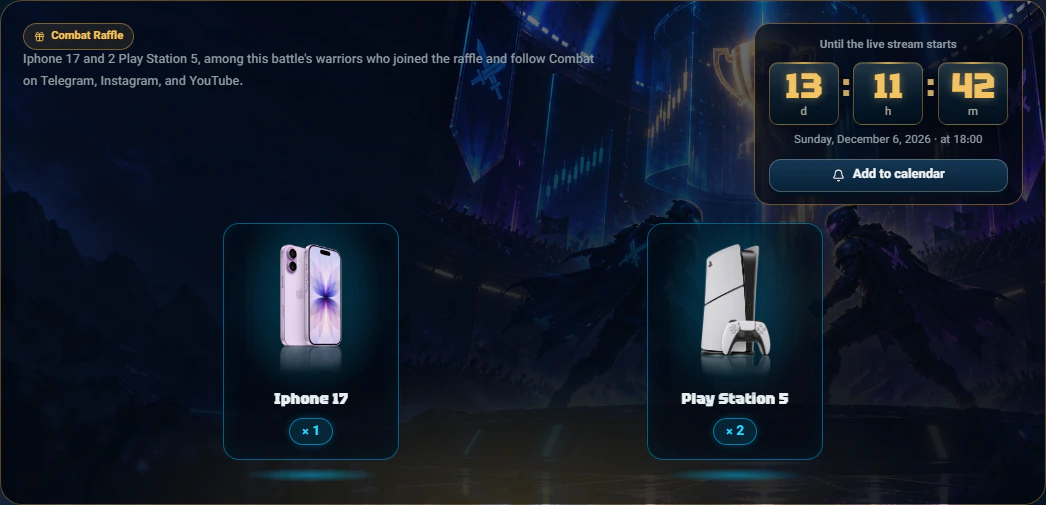
Open the raffle page from the “Live Raffle” card on the battle page or from the “+ Raffle” line on a battle's card.
- 1The prizes and who can take part: the draw is among this battle's warriors who have joined the raffle and follow Combat on Telegram, Instagram and YouTube.
- 2The countdown to the live draw
- 3“Add to calendar”: a reminder of the live draw in your phone's or computer's calendar.
- 4The prizes: one iPhone 17 and two PlayStation 5 consoles
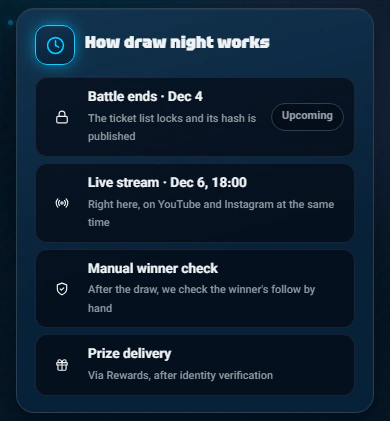
How does draw night work?
- End of the battle: the ticket list is closed and its hash is published, so nobody can change the list afterwards.
- Live stream (6 December, 18:00 Tehran time): on this page, YouTube and Instagram at the same time.
- Manual winner check: following Combat's pages on social media is checked by hand.
- Prize delivery: from “Rewards”, after identity verification.
Joining the raffle
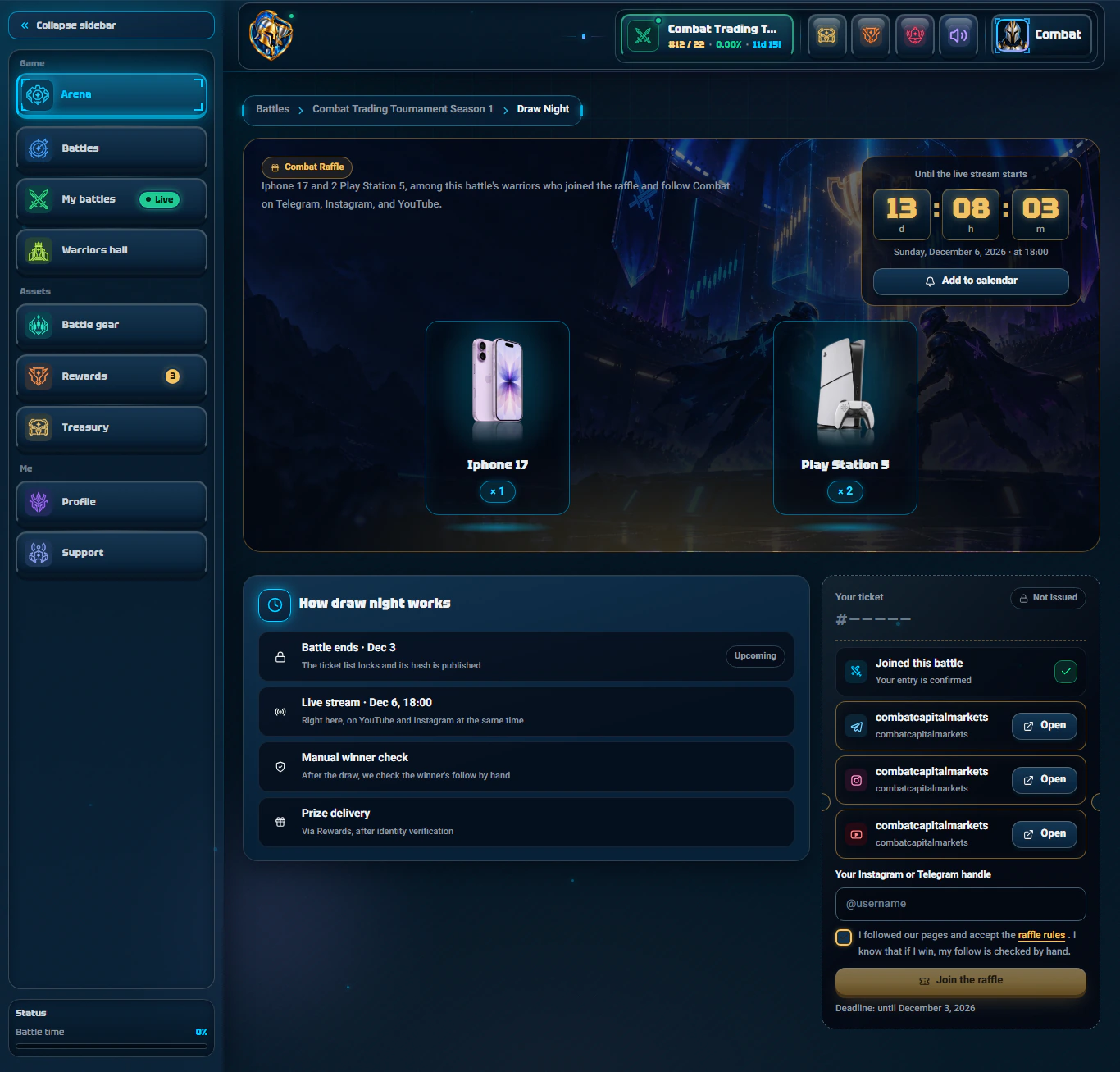
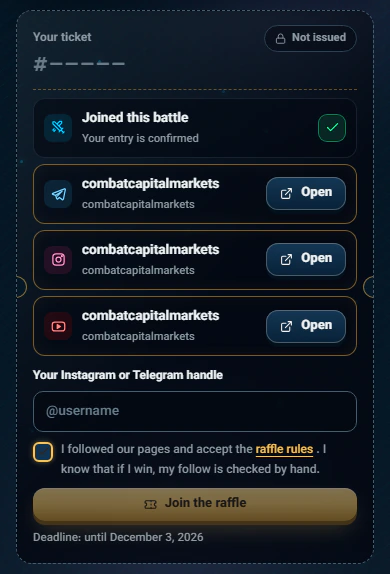
Use the “Join the raffle” button on the battle page or on the “You're registered!” page to open the raffle page. At the bottom, the “Your ticket” card holds the entry form:
- 1Taking part in this battle: you must be registered for the battle. If you are, you see the green tick “Your entry is confirmed”.
- 2Open Combat's pages on Telegram, Instagram and YouTube with “Open” and follow them.
- 3Write your Instagram or Telegram ID, for example @username
- 4Tick “I followed our pages and accept the raffle rules…”. The full text is in “Raffle rules”.
- 5Select “Join the raffle”. The deadline is written under the button.
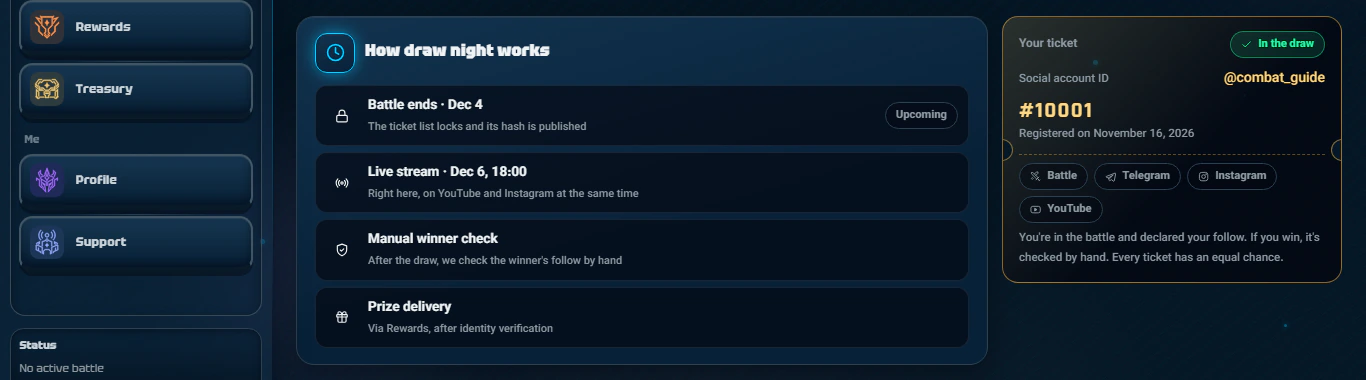
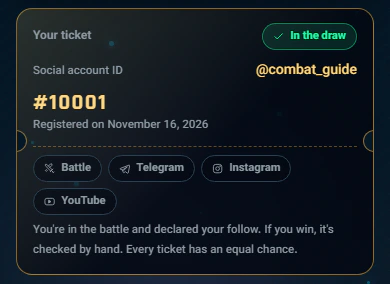
After you submit, your ticket is issued: the ticket number, the ID you entered, the date and the status “In the draw”. Every ticket has the same chance, and if you win, your follows are checked by hand.
Battle gear and connecting to MT5
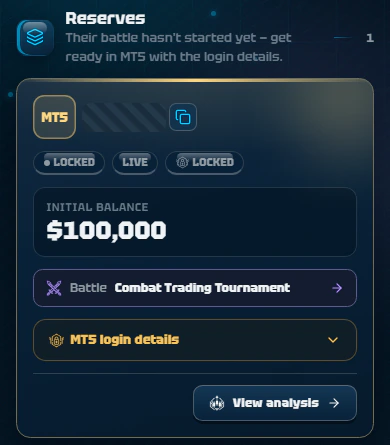
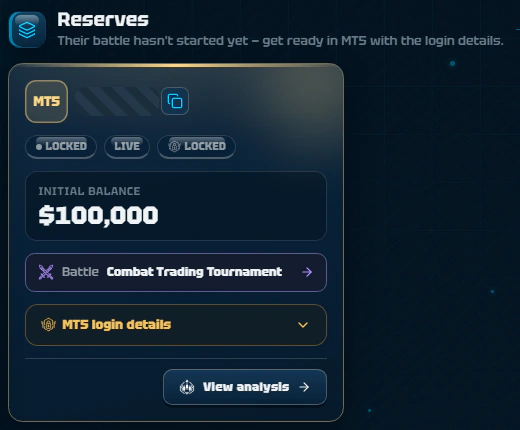
When you register for a battle, Combat creates an MT5 account for that battle alone. All of these accounts are in “Battle gear”.
- 1The account number, its status and the battle it belongs to
- 2“MT5 login details”: the server, account number (Login) and password
- 3“View analysis”: this account's trading stats
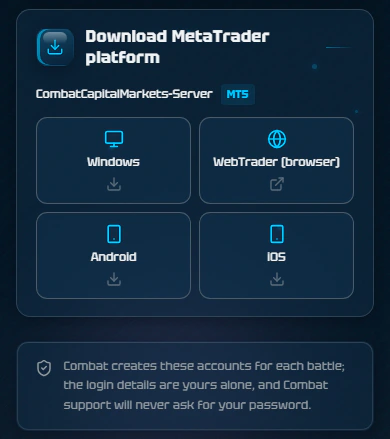
Connecting to the account
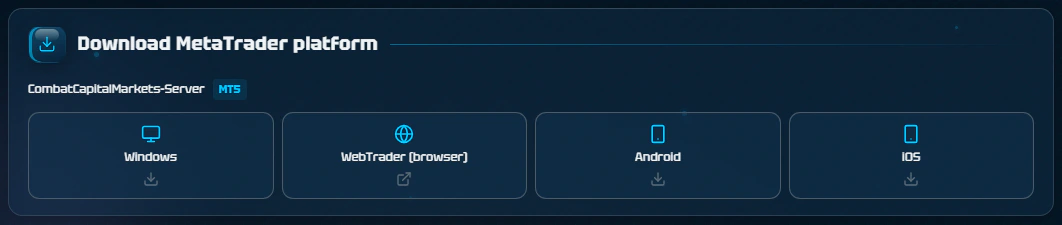
- In “Download MetaTrader platform”, get the version for your device: Windows, WebTrader (in the browser), Android or iOS.
- In MetaTrader, choose the “CombatCapitalMarkets-Server” server.
- Take the account number and password from “MT5 login details” and log in.
- From that moment, every trade in this account counts toward the battle's ranking.
The command center
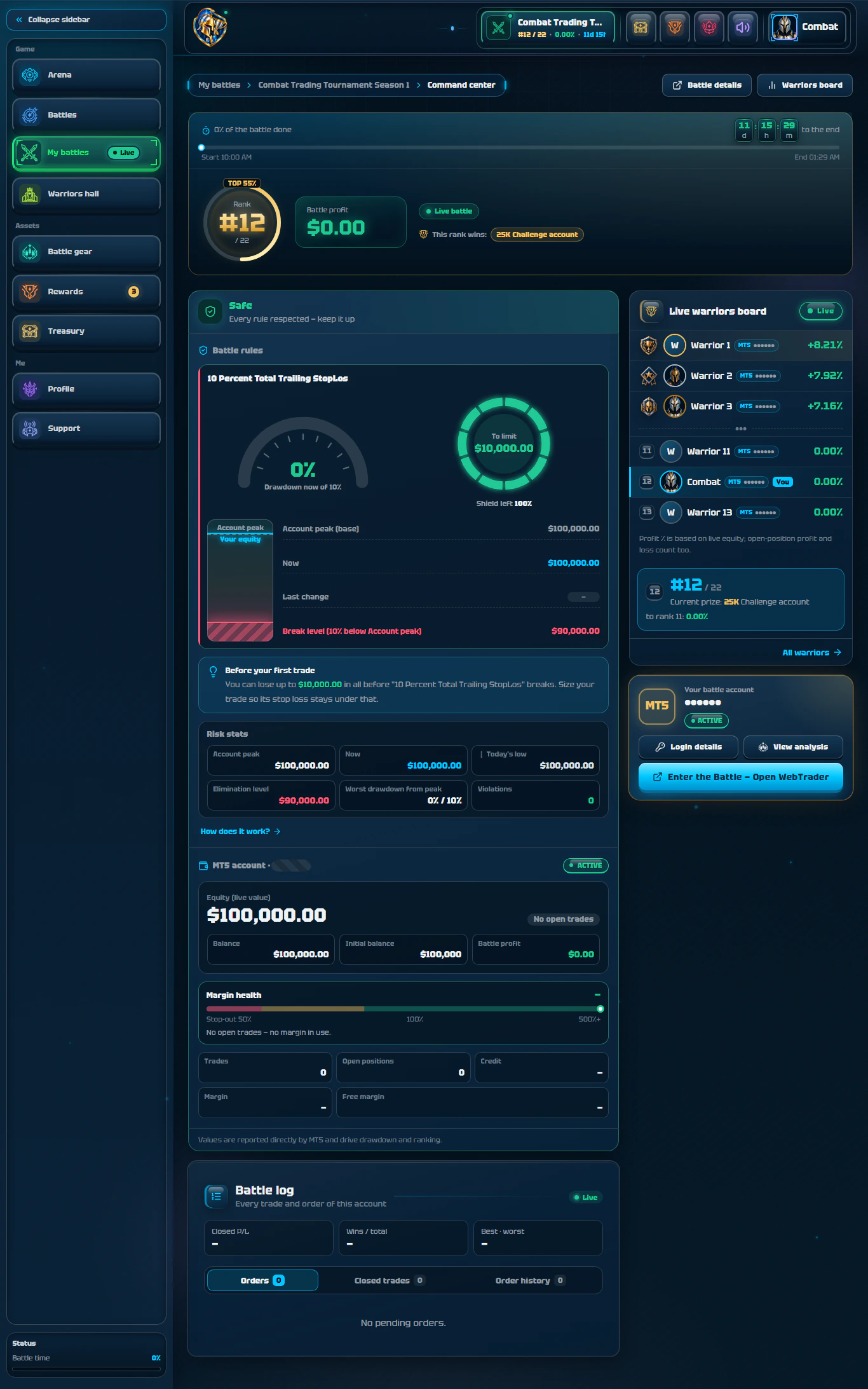
The command center is your battle's live page. Open it from the Arena, from the live battle bar at the top of the page or from “My battles”.
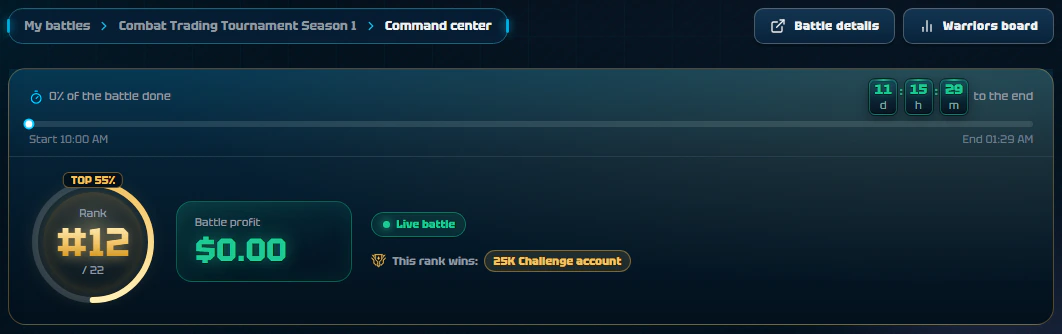
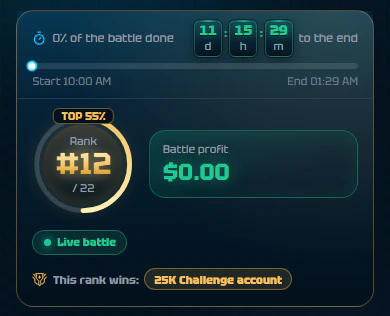
- 1Battle progress: how much of the battle has passed and how much is left
- 2Your rank and the share of warriors you are ahead of
- 3Your battle profit
- 4Your status and the prize for your current rank
- 5Shortcuts to “Battle details” and “Warriors board”
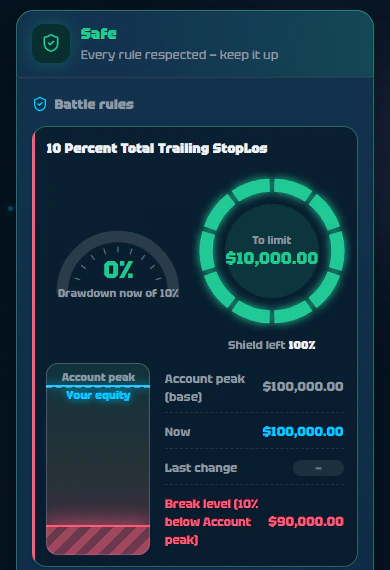
- 1“Safe” means you have kept every rule. If you get close to a limit, a warning appears here.
- 210% trailing total loss limit: how far you are from the elimination level (“To limit”) and how many percent you are down.
- 3Account peak and elimination level: the elimination level is always 10% below the highest equity you have reached.
An example: how does the elimination level rise? + a note on trade size
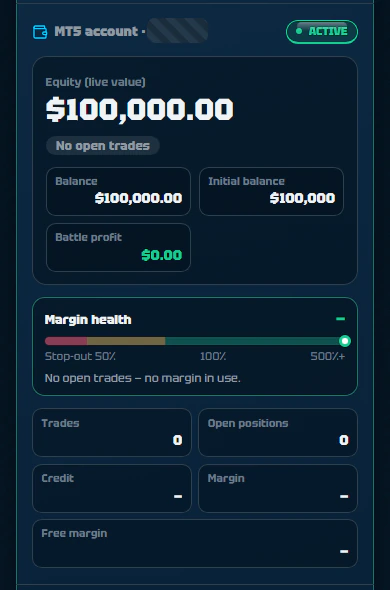
- 1Equity (the live value), balance, starting balance and battle profit; all reported straight from MT5.
- 2Margin health: if the margin level reaches 50% (stop-out), positions are closed automatically. Margin and free margin are here too.
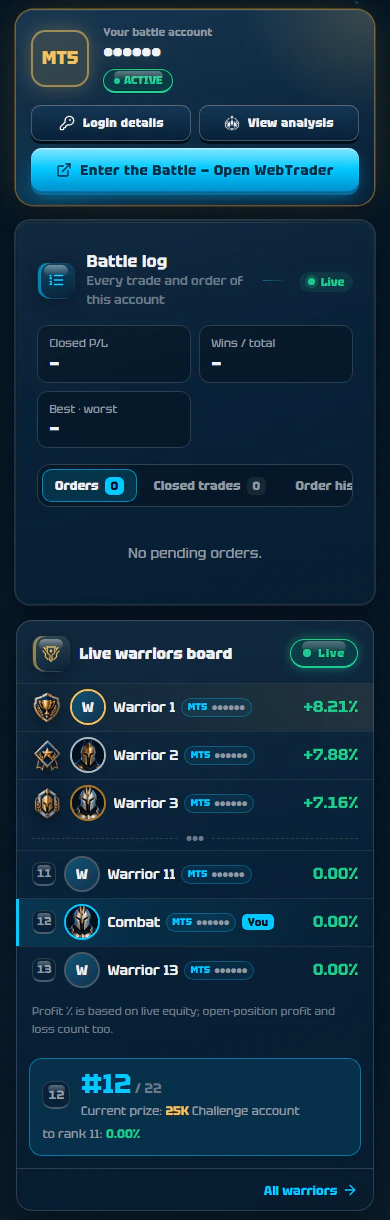
- 1The battle account's “Login details” and “View analysis”
- 2Battle log: all trades and orders, closed P/L, wins out of total, best and worst trade
- 3Live warriors board: where you stand among the others. The profit percentage is based on live equity, so the profit and loss of open positions count too.
The Warriors hall
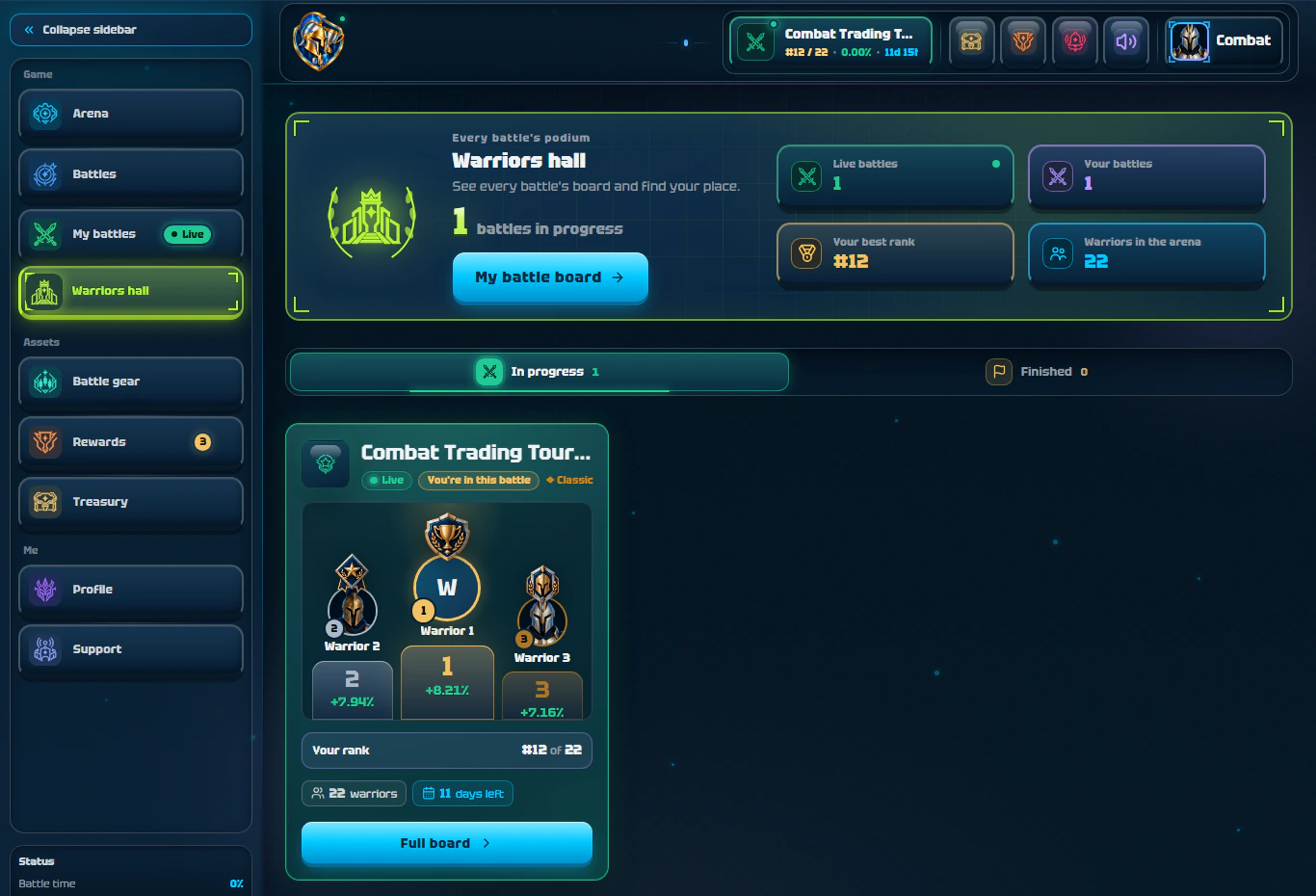
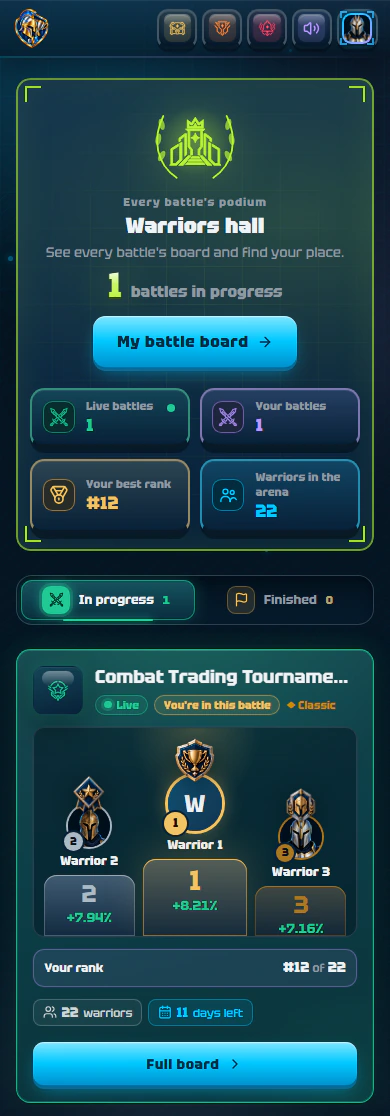
“More” in the bottom menu holds “Warriors hall”, “Rewards”, “Treasury”, “Profile” and “Support”.
Click “Warriors hall” in the side menu.
In the “Warriors hall” you see each battle's board and find your own place. The top three are shown on the podium, and “Full board” shows every rank.
“My battle board” opens the board of the battle you are in right now.
Rewards and the Treasury
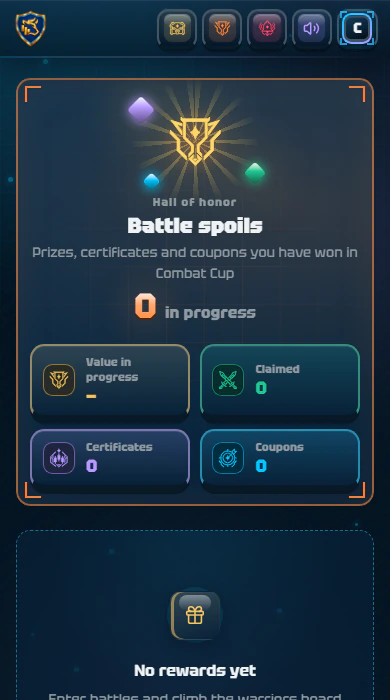
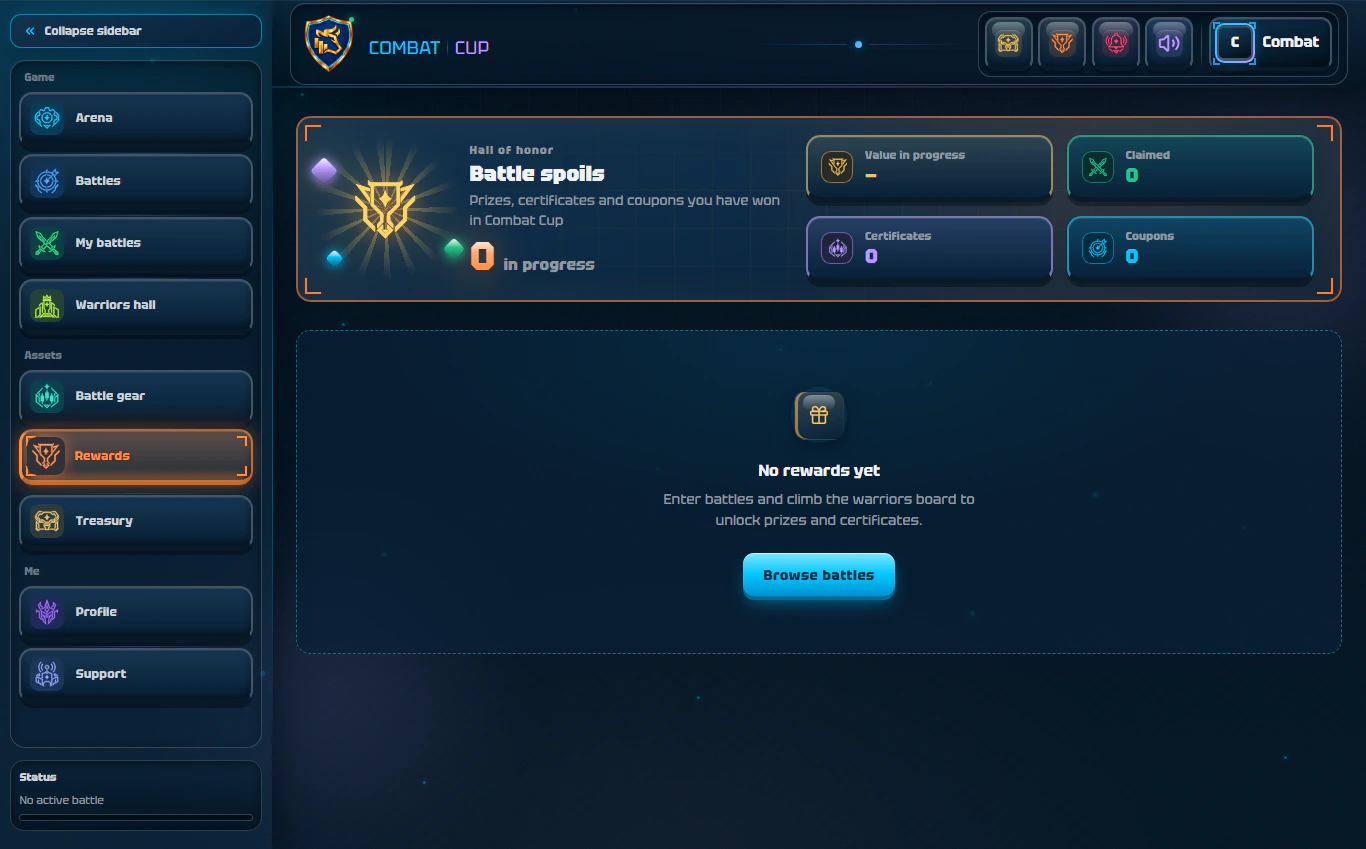
“Rewards” is where the prizes, certificates and coupons you earn in Combat Cup are kept. Prizes on the way, their value and prizes received are shown separately.
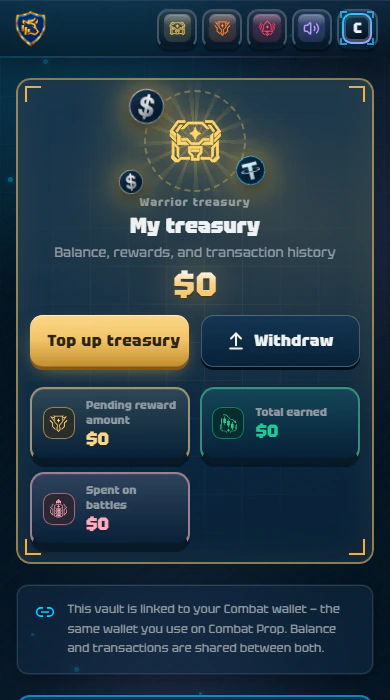
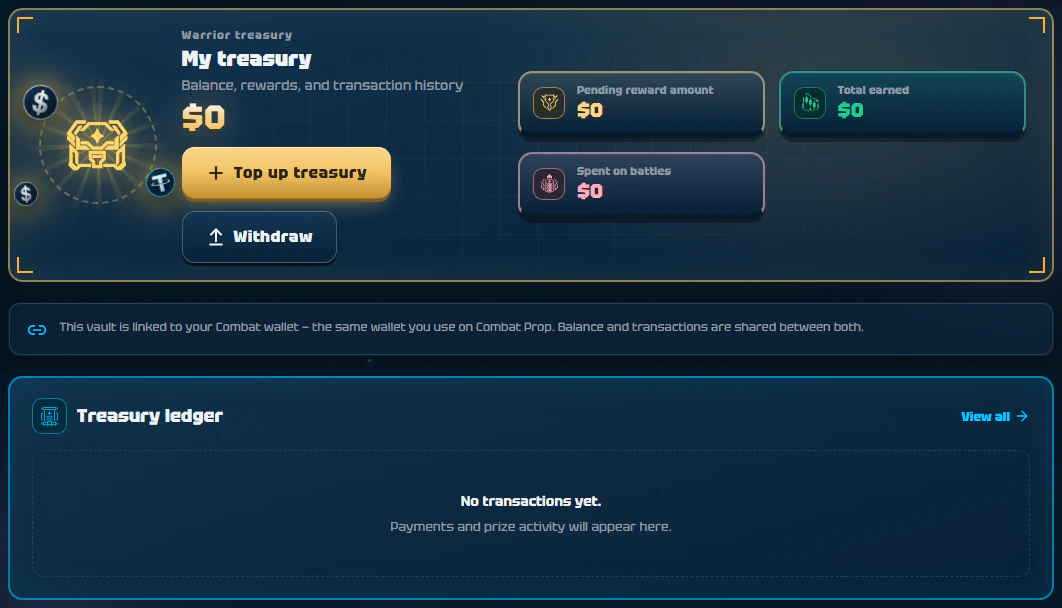
“Treasury” is your wallet at Combat; the same wallet you use on Prop Combat, so the balance and transactions are the same in both.
- “Top up treasury”: to pay the entry fee of battles that are not free.
- “Withdraw”: withdraw your balance and cash prizes.
- Treasury ledger: all payments, prizes and battle spending.
Profile, notifications and support
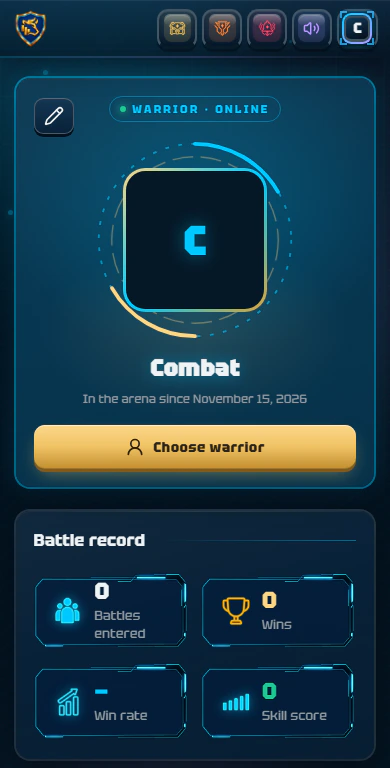
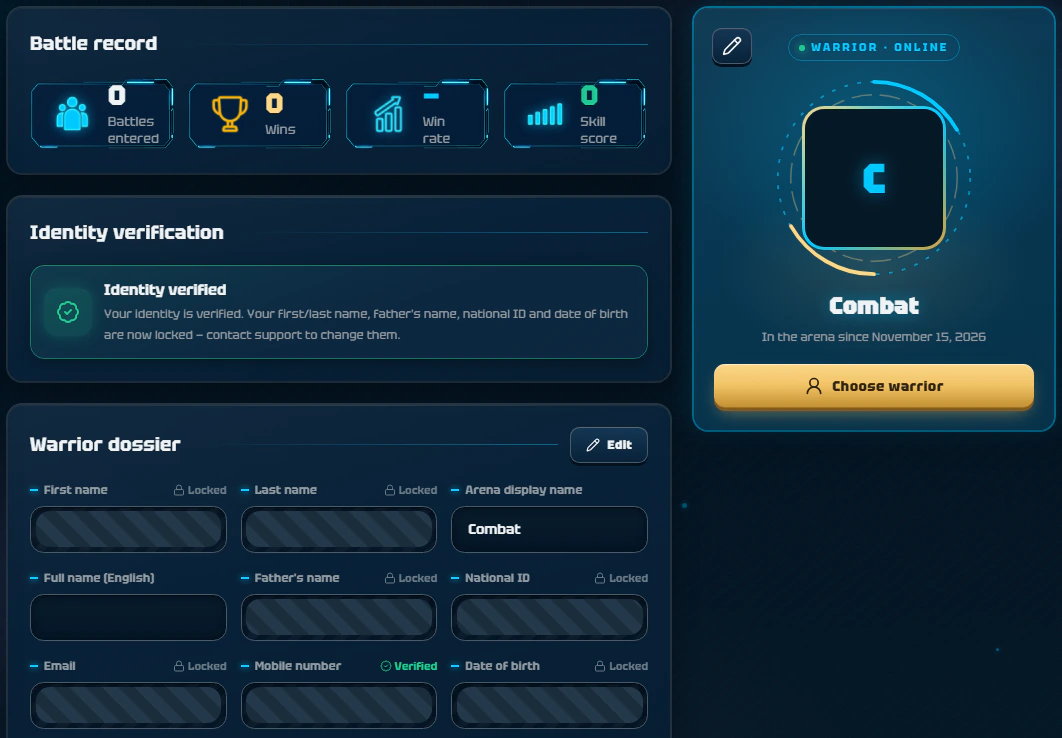
In “Profile”:
- “Choose warrior”: pick your warrior's picture.
- Battle record: number of battles, wins, win rate and skill score.
- Identity verification: the status of your verification.
- Warrior dossier: use “Edit” to change your “Arena display name” and English name; this name is shown on the boards. Identity details are locked after verification.
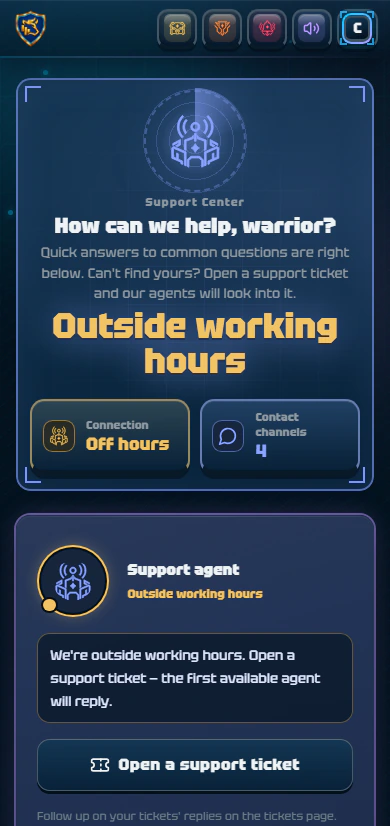
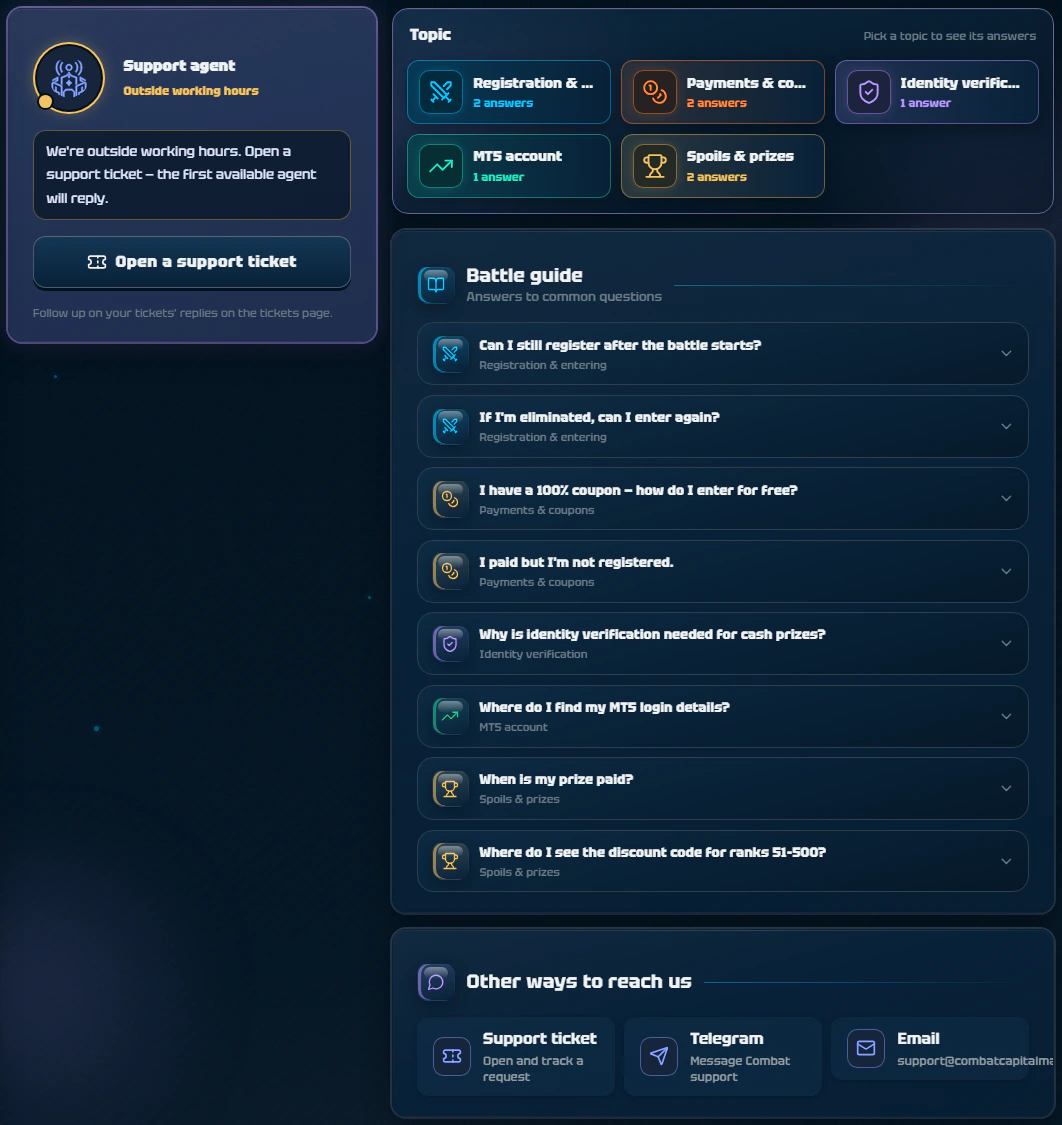
In “Support”, first choose the topic of your question (Registration & entering, Payments & coupons, Identity verification, MT5 account, Spoils & prizes) to see the answers. If you didn't find yours:
- “Open a support ticket”; during or outside working hours. Follow the reply on the tickets page.
- Combat's support Telegram
- Email: [email protected]
“Notifications” (the bell in the top bar) tells you when a battle starts or a prize is ready.
Frequently asked questions
Can I still register after the battle starts?
Yes, until that tournament's registration closes. The closing time is on the tournament card and its details page.
If I'm eliminated, can I enter again?
If the tournament allows re-entry, yes — until the date shown on its details page.
I have a 100% coupon — how do I enter for free?
On the Enter the battle page your valid coupon is applied automatically and the entry fee becomes zero.
I paid but I'm not registered.
Wait a few minutes and refresh. If the amount was charged and the registration still isn't there, open a support ticket so our agents can check.
Why is identity verification needed for cash prizes?
Cash prizes are paid only after identity is verified. The steps are under Profile → Missions.
Where do I find my MT5 login details?
In Battle gear, on the account card: the account number and server.
When is my prize paid?
After the results are final and, if needed, your identity is verified. Track it under Rewards.
Where do I see the discount code for ranks 51–500?
On that battle's result page and under Rewards.
Glossary
The terms15 terms
| Term | Meaning |
|---|---|
| Battle | A trading competition with a set start and end, rules and prizes |
| Arena | The panel's main page |
| Warrior | Anyone taking part in a battle |
| Battle gear | The list of your MT5 accounts |
| Command center | Your battle's live page |
| Treasury | Your Combat wallet |
| Rewards | Prizes, certificates and coupons |
| Balance | The account's funds, not counting open positions |
| Equity | The account's live value: balance plus the profit and loss of open positions |
| Drawdown | The fall in equity from the account peak |
| Account peak | The highest equity your account has reached during the battle |
| Trailing total loss limit | An elimination level that rises with the account peak and never comes down |
| Eliminated | A warrior who has broken one of the rules |
| Disqualification | A manual ban for misconduct |
| Coupon | A discount code for an entry fee or a plan purchase |